Introduction
To be clear, these utilities are great on Linux and Mac as well, I use them everyday.
I decided to focus on the Microsoft OS because searching for files on Windows has always been a bit weird, clunky and slow.
We also often miss utilities like GNU grep which does have a PowerShell counterpart (called Select-String) but it's not really comparable because PowerShell is not "string based".
For the other traditional command line shells, strings separated by spaces or line feeds are the only data being manipulated whereas PowerShell uses objects for everything.
Select-String is also a bit awkward to use when coming from the UNIX as it won't work without a Path argument and that argument has to select files using globbing (with the "*" character - Providing a directory doesn't work at all):
Select-String -Path .\*.txt -Pattern '<SEARCH_PATTERN>'
That command will search for the given pattern (can be a regular expression) in all the txt files in the current directory.
The output of other commands can also be piped into Select-String to filter relevant objects from the output:
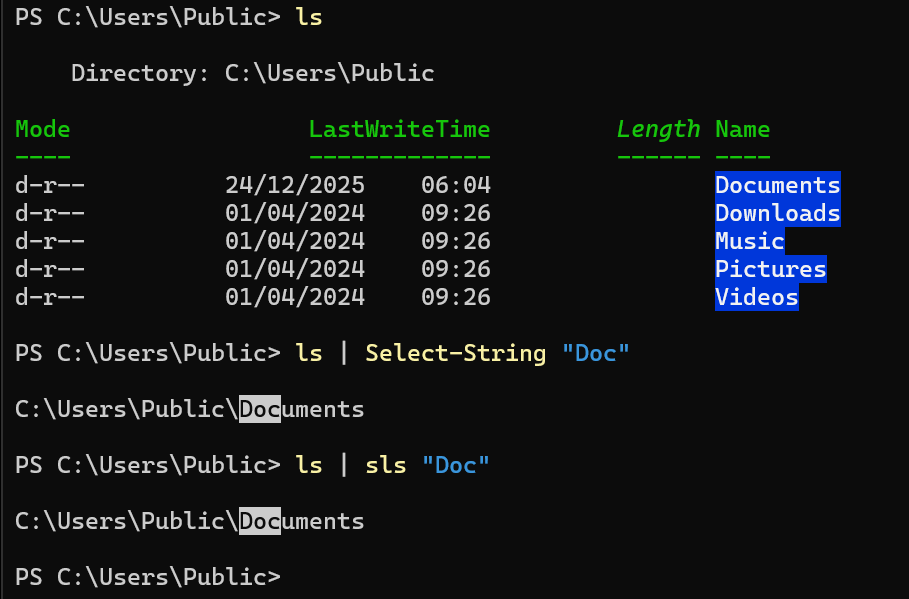
The cmtlet actually works well for that use case with its handy alias sls, less so for searching for text in a bunch of files.
Installation
While we're at it, if you don't have PowerShell 7 (the one installed with Windows is 5.*), I suggest installing it first using winget:
winget install Microsoft.PowerShell
It should then appear in your programs, and can be invoked as a new tab in Windows Terminal (you should set it as the default terminal to start as well). Its icon is black instead of blue.

That PowerShell version is more reactive for some reason, has syntax highlighting while typing commands, and suggests commands based on your history.
Installing rg
Ripgrep is available through winget:
winget install ripgrep
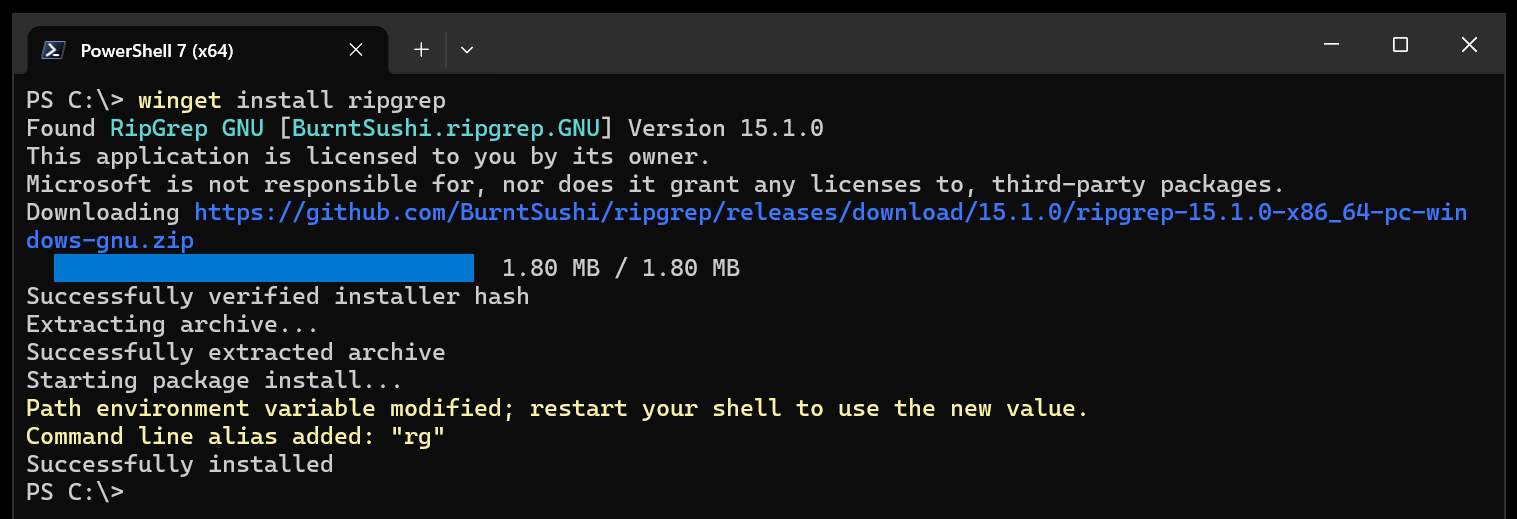
Once it finished installing, you might have to restart the current terminal session to have the command available in the PATH.
Installing fd
The utility is also available via winget:
winget install sharkdp.fd
It should ask to install the Visual Studio C++ redistributable dependencies if you don't have these already.
We then need to restart any currently running PowerShell session.
You should now be able to type fd and see its output (which is a list of every single non-hidden file found from the current directory).
Using rg
Ripgrep sort of behaves like grep with some quality of life defaults.
The main one is you don't have to provide a path or the "recursive" option, it'll search recursively from the current directory by default.
It is however making case sensitive searches by default (like grep) but we can add the -i argument to make the search case insensitive.
The output will show each file inside which the pattern (can be a Rust style regular expression) was found as well as the line number where it appears.
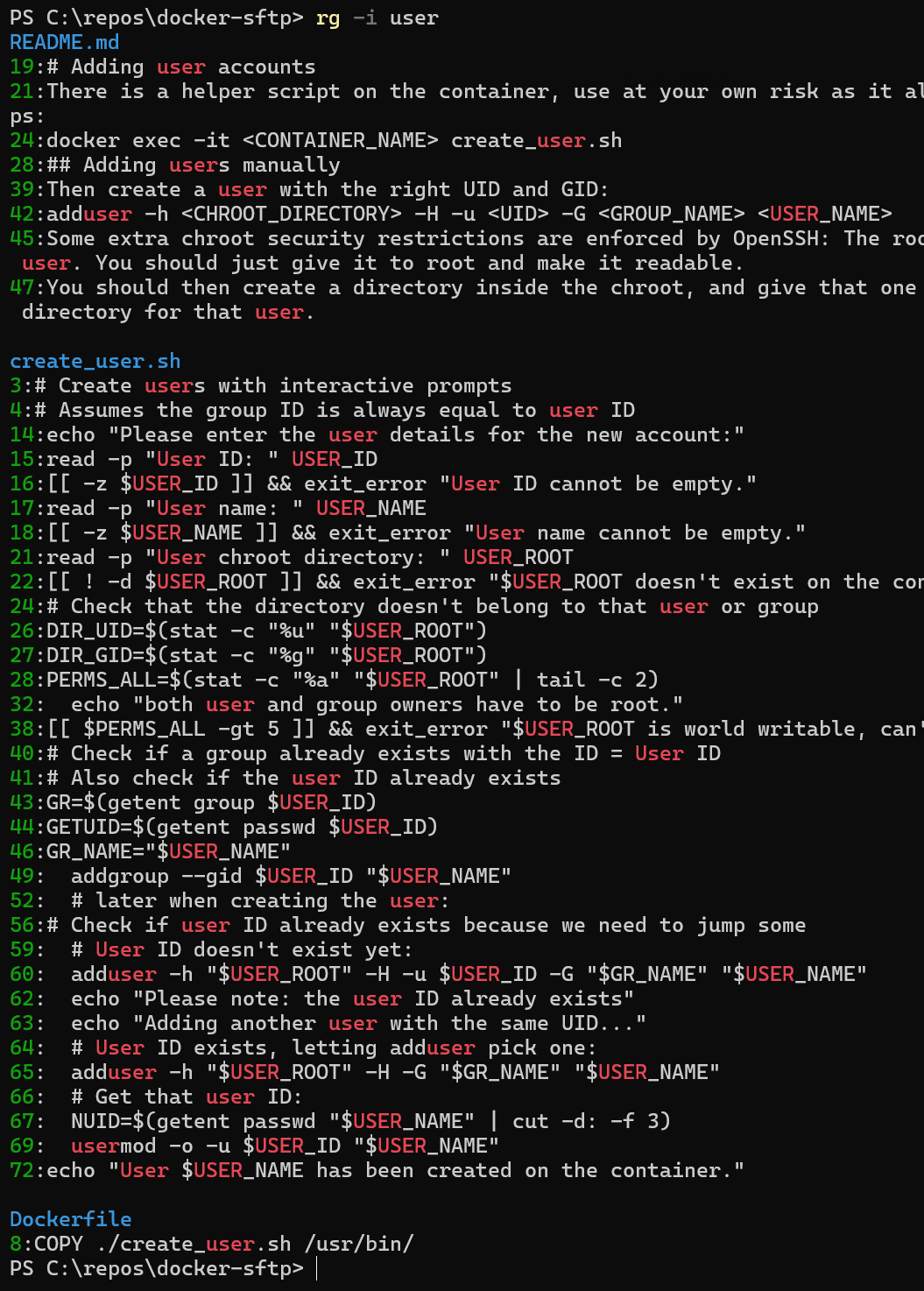
Of course, rg can also be used for piping text into it and isolating specific lines but I mostly use it for searching on Windows as it's way faster than any built-in "search inside file content" feature on that operating system.
It won't search in files present in a .gitignore file by default, meaning you don't have to go look up the exclude option when trying to search for text in a JavaScript project and having a whole bunch of results from node_modules, it will be ignored by default if present in the .gitignore file.
Other notable options:
- --invert-match — Reverse grep: only show results that do not match ("-v" option on grep)
- --hidden — Searches in hidden files as well
- --no-ignore — Also searches files that appear in a .gitignore or similar
If you want to search using globs (asterisks) on Windows, you need an extra option because Windows shells won't do globbing expansion (it's also not a bad idea to use that option on Linux and Mac as well):
rg -i "searching" --glob *.md
Which will search for the text "searching" in every ".md" file recursively.
Using fd
These notes are in no way an exhaustive tour of fd.
The utility is similar to the find command with more sensible defaults and less of the more alien behavior the real find command has for various reasons.
We have an article dedicated to find for anyone interested, it goes a bit more into the details.
The main difference would be that fd is case-insensitive by default and takes the first non-option argument as being a filename pattern you're looking for.
Which means that:
fd test.txt
Is roughly equivalent to:
find -iname test.txt
Though the name is actually a regular expression for fd, making it possible to, for instance, search for any file starting with "backup_":
fd "^backup_"
And also it's not really case-insensitive in a strict term, it's using smart case: the search becomes case-sensitive automatically when at least one character in the search string is uppercase.
We're searching in the current directory by default but a path can be given after the search term (the find command would have it before).
Using effective and multi-threaded path traversal, fd is extremely fast to search for file and directory names, especially on a modern SSD. There is no utility with such a fast response on Windows as far as I know.
It will also ignore files from a .gitignore just like rg does, as well as hidden files by default.
To exclude more things, the --exclude params accepts a pattern and can be repeated multiple times.
The general model of the command is simpler with none of the complex control over the flow of the different checks being made that find provides (but I personally never use).
One of the most useful test to add is -type which behaves almost exactly like find does.
The main types being:
- f — Files
- d — Directories
- l — Symlinks
- x — Executables
- e — Empty files
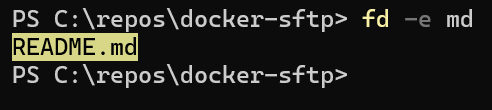
Something we do quite often is searching by extension and that uses a special option to avoid any gripes with globbing:
Other common search options
- -d 1 — Max depth for searching through child directories (value of "1" makes us stop at the first level)
- -S — Similar to -size for find, with the + and - modifiers but also accepting file size units (b, k, m, g, etc.)
- -o [user][:group] — Only show files belonging to that user and/or group
Here's an example listing files larger than 2MB in the current directory only (do not recurse):
fd -d 1 -S +2m
Searching using the "modified" timestamp
Another common use case is search for files older than X or newer than Y.
There are now many different arguments meant for that:
- --changed-within
- --changed-before
- --newer
- --older
Values provided can be exact dates in various formats or durations, for instance 2weeks, 10h, 1d, 30min, etc.
A UNIX timestamp (in seconds) can also be given by prefixing it with "@".
Some examples from their man page:
Some examples from their man page:--changed-within 2weeks
--change-newer-than "2018-10-27 10:00:00"
--newer 2018-10-27
--changed-after @1704067200
This is very different compared to how we do it using find which uses modifiers "+" and "-" and different arguments specific to certain duration units.
Running commands
We can also set a command to be ran on every file found by fd.
Do note that fd will run these in parallel unless the option --threads=1 is added to the command.
Instead of -exec we can use -x and it doesn't require the \; terminator when -x is the last argument of the command.
It also doesn't need the {} placeholder by default, fd will implicitely make it as if it was present at the end of the command.
For instance these two commands are equivalent and will remove files older than 60 days:
fd --older 60d -x rm
fd --older 60d -x rm {}
However that won't work on Windows because "rm" is an alias to the Remove-Item cmdlet and neither aliases nor cmdlet can be given to execute to fd at the time of writing this article.
The work around is to either write some utility script that does the action you want to perform on files, or ask a subshell to run the command fully, for instance:
fd --older 60d -x pwsh.exe -CommandWithArgs "Remove-Item -Path {}"
In that case we have to add the placeholder or it won't work. Also, pwsh.exe is PowerShell 7 so it won't be available unless installed beforehand (see earlier section about installation).
A word of warning: You should always be careful when deleting or altering files as an action and carefuly try the command without the action first.
The whole pwsh.exe hack call is not necessary when calling a program or script that exists in the PATH. For instance, if unzip is available, the following command can extract every archive in the current directory (and its subdirectories):
fd -e zip -x unzip
Multiple -x arguments can be combined, in which case you do need the \; terminator unless it's the last -x on the line.
There's another option called "batch execute", the -X argument. It runs the command with all of the result as arguments, and does not perform any checks for the amount of those arguments nor will split them up.
It's also a bit awkward to use on Windows but you could, for instance, use it to open every file of a certain extension in your text editor:
fd -e md -X nvim
We also have a few extra placeholders on top of the classic "{}", for example "{.}" is like "{}" but without the file extension and might come in handy for batch renaming.
I'll repeat the warning to be careful with what you do and take backups before running any command with serious side effects.